SMS opt-in
How users opt in to Clockout SMS verification codes
Clockout is restaurant workforce management software — scheduling, timesheets and payroll for restaurant owners and managers. This page documents the consent disclosure shown to end users, and exactly where in the signup flow they see it.
Clockout's brand website is meetclockout.com; the application runs at app.getclockout.ai.
The program
Clockout sends one-time account verification codes by SMS. A code is sent only when the user asks for one, by entering their own mobile number during signup and tapping the "Send SMS code" button. Message frequency varies with user-initiated verification attempts — one message per attempt. Message and data rates may apply. Users can reply STOP to opt out or HELP for help. No marketing or promotional messages are sent under this program.
The consent disclosure, word for word
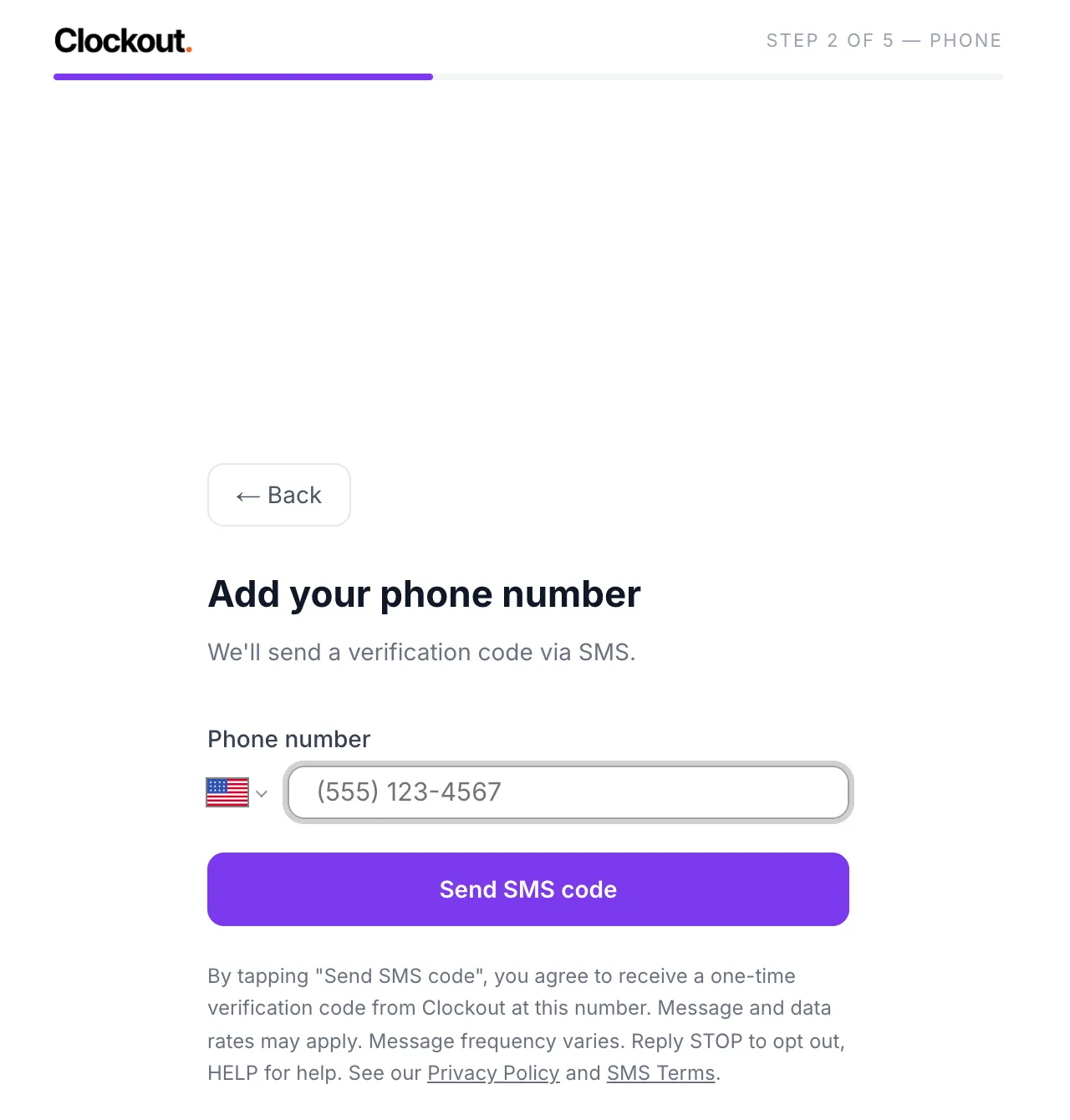
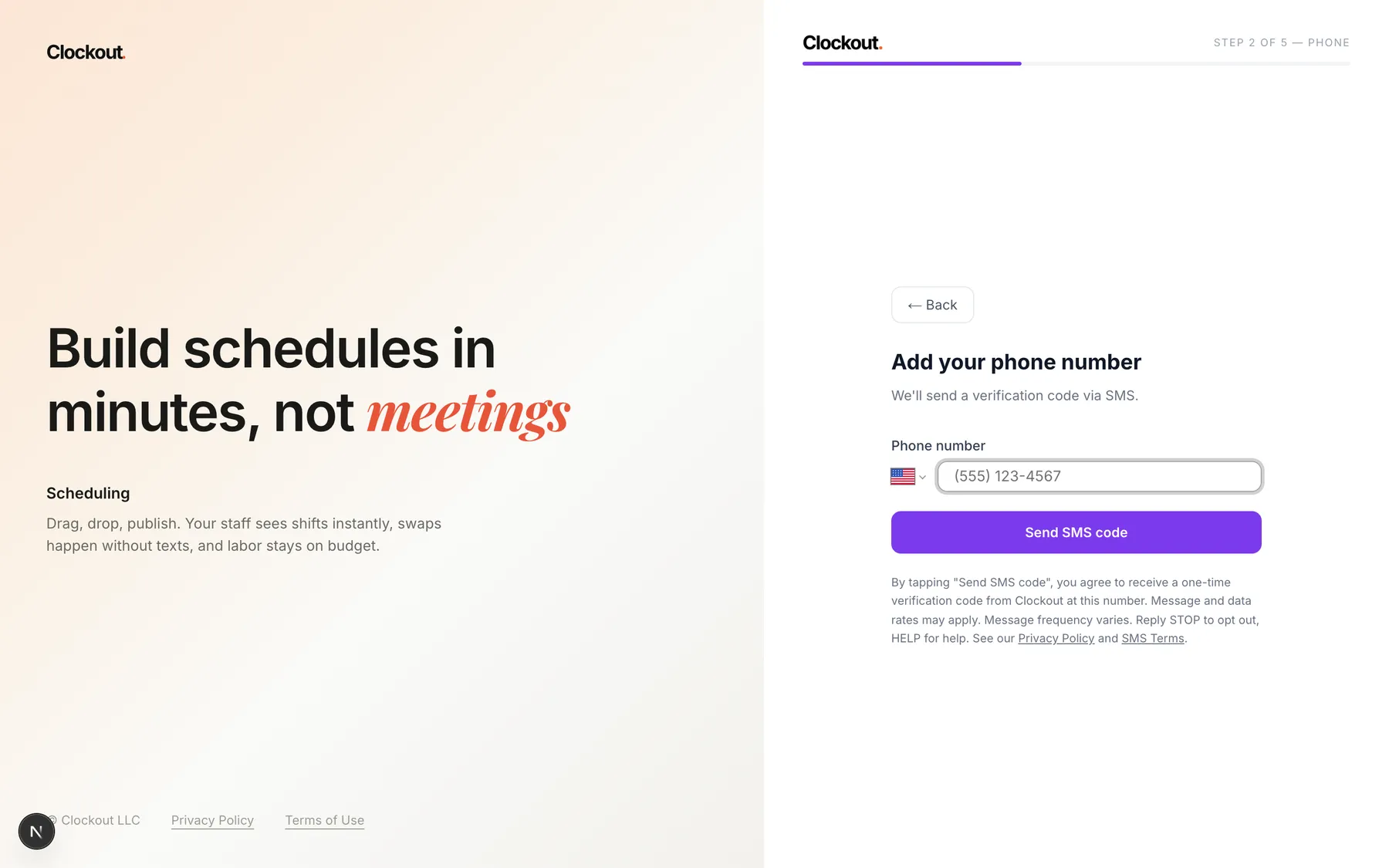
This text is displayed directly beneath the phone number field, immediately below the "Send SMS code" button, before any message is sent:
By tapping "Send SMS code", you agree to receive a one-time verification code from Clockout at this number. Message and data rates may apply. Message frequency varies. Reply STOP to opt out, HELP for help. See our Privacy Policy and SMS Terms.
In the live screen, "Privacy Policy" and "SMS Terms" are links to meetclockout.com/privacy-policy and meetclockout.com/terms. Tapping "Send SMS code" is the affirmative opt-in action — there is no pre-checked box anywhere in the flow.
The opt-in screen
Captured from the deployed application. The phone field shows its placeholder, (555) 123-4567 — no real end-user phone number or email address appears in any image on this page.
How users reach this screen
Account creation starts at https://app.getclockout.ai/signup. The flow opens on a role-selection screen, then runs as five numbered steps. Email verification comes first: the user enters an email address at step 1 and confirms it with an emailed code. The phone opt-in is step 2 of 5, reached only after that email verification.
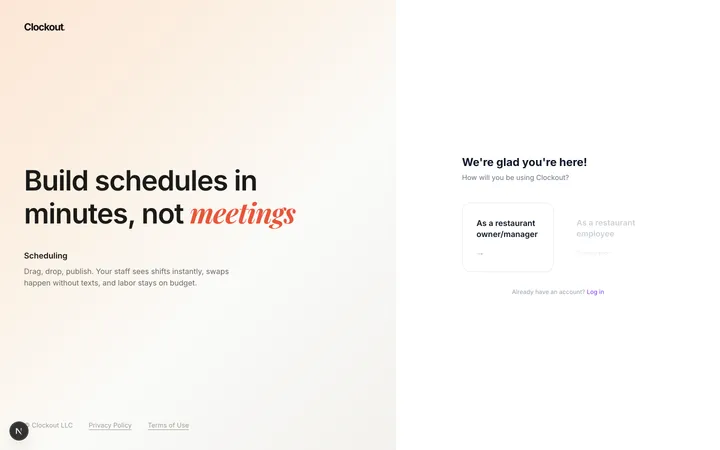
- Role selection — "As a restaurant owner/manager"
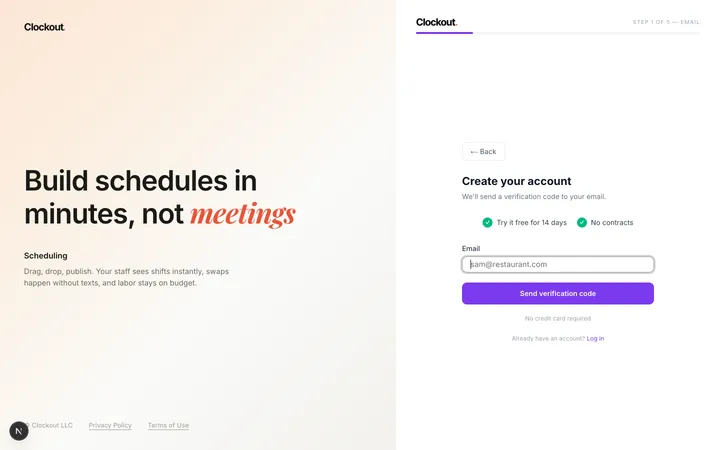
- Step 1 of 5 — Email, verified by an emailed code
- Step 2 of 5 — Phone. The SMS opt-in screen shown above.
- Step 3 of 5 — Password
- Step 4 of 5 — Your name
- Step 5 of 5 — Your restaurant
Because the phone step sits behind email verification inside a stateful wizard, it has no public URL of its own and cannot be linked to directly — which is why it is documented here.
The surrounding steps
The other wizard screens, for context. All values shown are placeholders.
-
Role selection
The first screen after opening the signup link. Choosing "As a restaurant owner/manager" starts the 5-step wizard.
-
Step 1 of 5 — Email
The user enters an email address and verifies it with an emailed code before any phone number is requested.
-
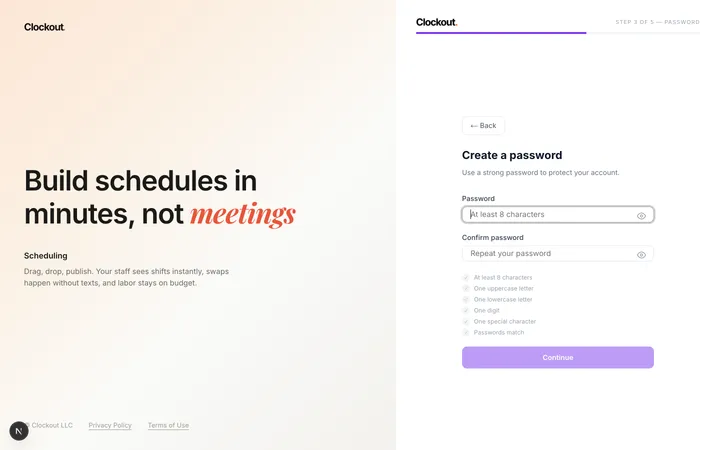
Step 3 of 5 — Password
Password creation follows the phone step. Step 4 collects the user's name and step 5 collects their restaurant.
Policies
Full details of how Clockout collects and uses SMS data, and the terms of each SMS program, are published here:
No mobile information is shared with third parties or affiliates for marketing or promotional purposes. Text messaging originator opt-in data and consent are not shared with any third parties.